Microsoft SQL Server 2025 introduces major advancements in performance, security, and built‑in AI capabilities. Before you can start exploring its new features, you need to install it correctly. This guide walks you through the full installation process of SQL Server 2025, SQL Server Management Studio 22, and restoring the AdventureWorks2025 database to create a practice environment to test the new features and enhancements of this new release.
Download and Install SQL Server 2025
You can download the SQL Server 2025 Developer edition for a development and testing environment. SQL Server 2025 allows either the Standard or Enterprise Developer Edition. We will use the Enterprise Developer edition for this installation.
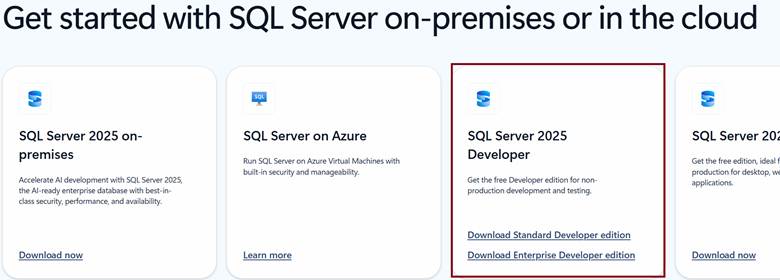
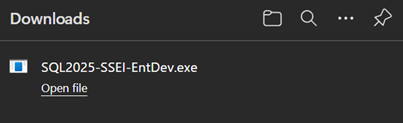
- Once the download finishes; click on open file under SQL2025‑SSEI‑Eval.exe to begin installation.
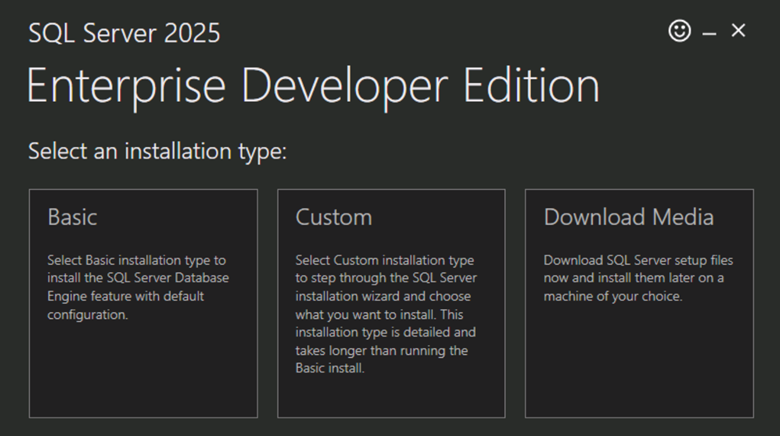
- You will see three installation paths: We will choose Custom.
- Basic: One‑click installation of Database Engine.
- Custom: Full control, recommended for most users.
- Download Media: Use if you plan to install offline or reuse media. If you choose Download Media, mount the ISO afterward and open setup.exe.
- Choose the Location to download media and then click Install.
- I place software on my E: Drive. Choose your location as needed.
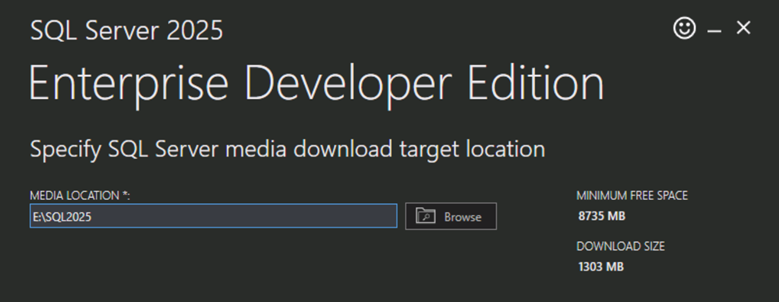
- In the SQL Server Installation Center choose Installation from the left navigation blade and then, New SQL Server standalone installation or add feature to an existing installation.
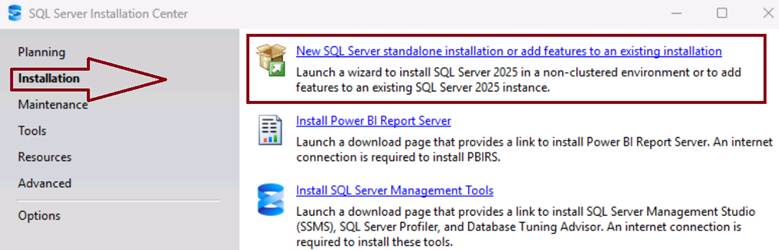
- Sometimes the SQL Server 2025 Setup dialog box displays behind the Installation Center dialog box.
- Once it appears click on the Setup dialog box and choose the edition that mirrors your production environment. We will be using the free Enterprise Developer edition.
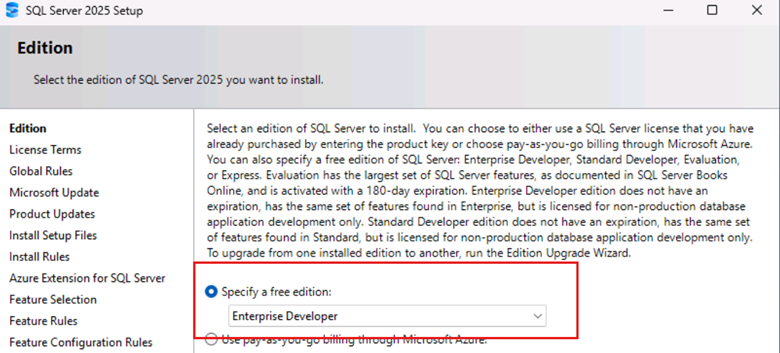
- Accept License Terms End User License agreement and click Next.
- Check Microsoft Update to check for updates (recommended) and click Next.
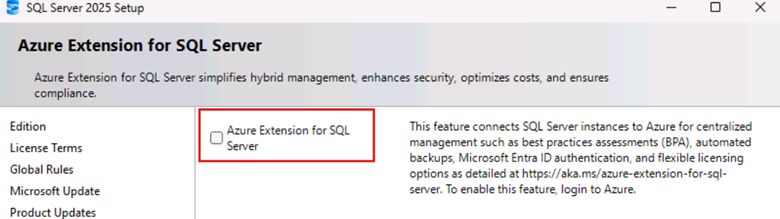
- Uncheck Azure Extension for SQL Server and click Next.
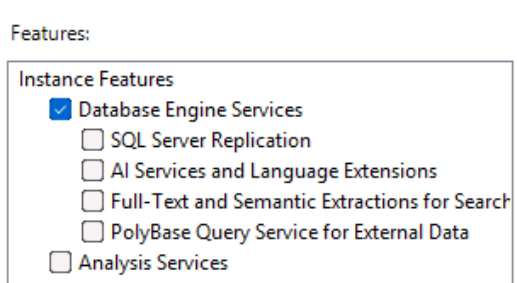
Feature Selection for the Database Engine Services
- For Feature Selection, we will only select Database Engine Services.
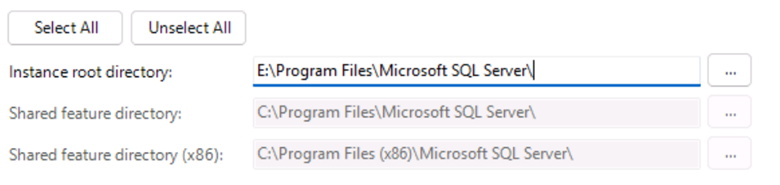
- Set the Instance Root Directory to a non‑system drive if possible and click Next. (I changed mine to the E: drive to save space on my C: drive.)
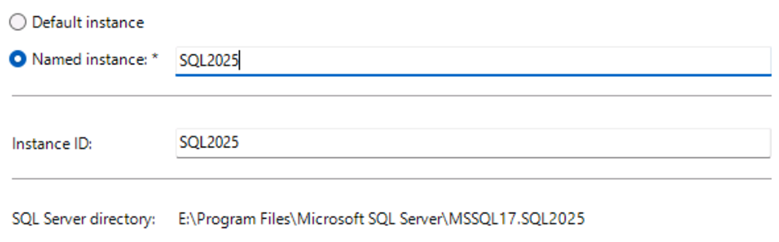
- Under Instance Configuration choose Named Instance. (Recommended for test/preview environments) and provide a name for your instance. (We are using SQL2025 as the Named Instance), then click Next.
- On the Server Configuration page, we will use the default service accounts and click Next.
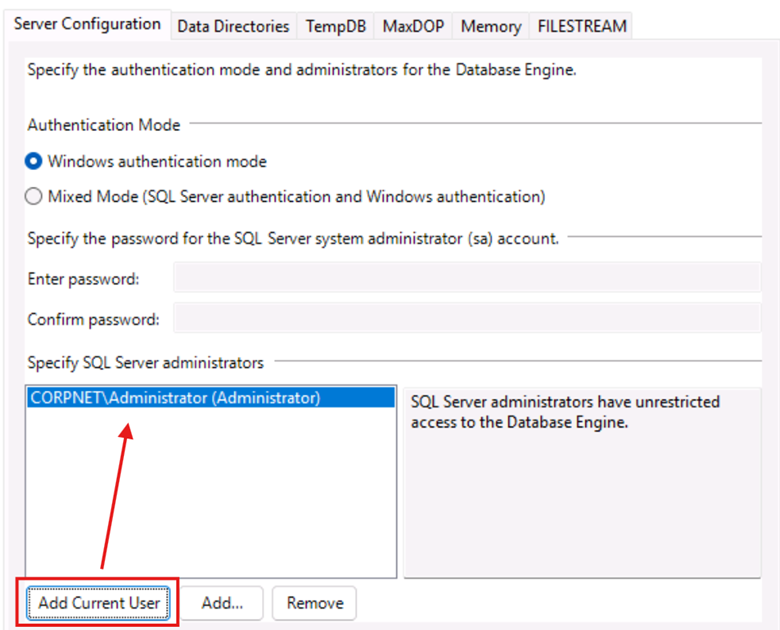
- On the Database Engine Configuration page, make sure Windows Authentication is selected.
- Select the Add Current User button and verify your account is added as a SQL Server administrator.
- Once you have verified your account is present, click Next.
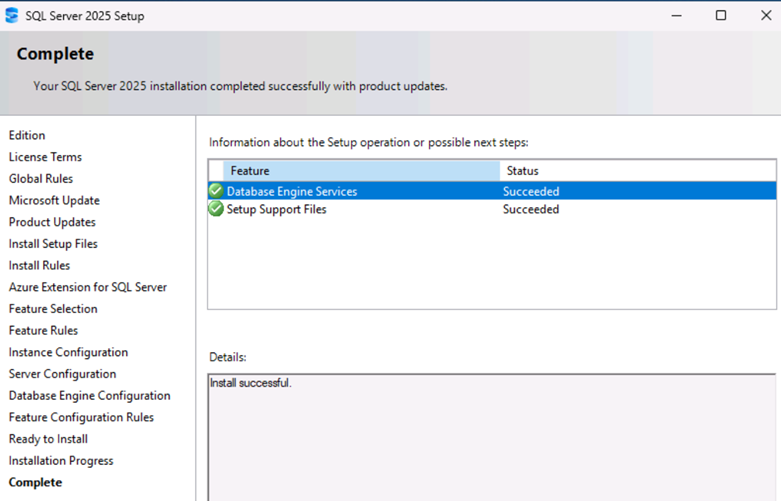
- On the Ready to Install page, review the Summary and then click Install. Installation should take 10-15 minutes. Once complete, click Close.
Download and Install SQL Server Management Studio 22
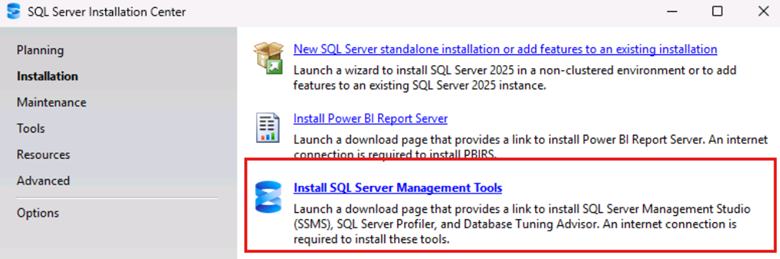
You can download and Install SQL Server Management Studio for a development or testing environment by going to directly to the website; or from the SQL Server Installation Center by clicking on Install SQL Server Management Tools.
- On the Management Studio website, download the SQL Server Management Studio 22 installer.

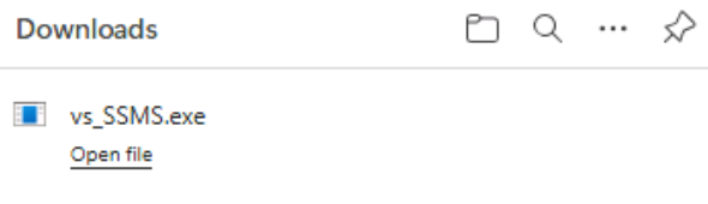
- Once downloaded, click on Open File to start the installation wizard.
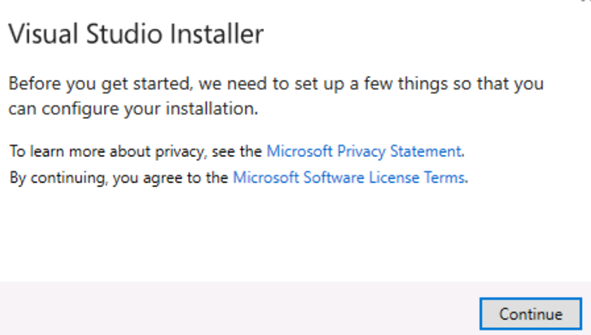
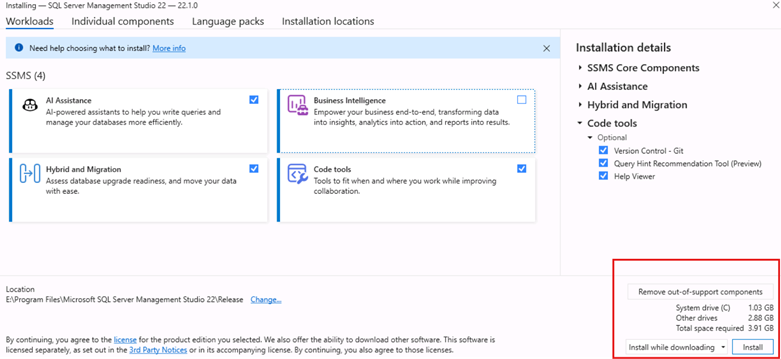
- SSMS 22 now uses the Visual Studio Installer, click Continue.
- On the Workloads page, select the additional features that you want and then click Install. This process will take 5-10 minutes. Once installation is complete, close any open dialog boxes.
Connect SSMS 22 to SQL Server 2025
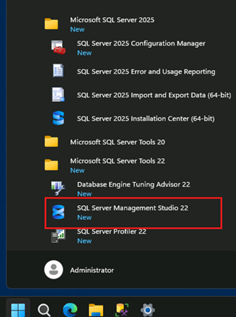
Now that installation is complete, close any open dialog boxes. Next, we will connect the client tool (SSMS22) to the database engine (SQL Serve 2025). On you Windows Start menu, under the Microsoft SQL Server Tools 22 folder, select SQL Server Management Studio 22 application. (I will also right-click on the icon to pin to my taskbar for future usage).
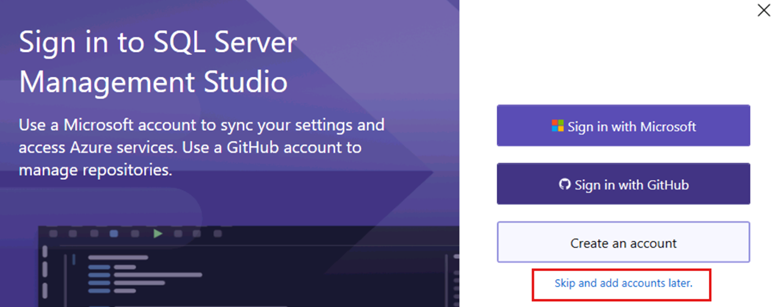
- If you get the Sign- in to SQL Server Management Studio dialog box, click on Skip and add accounts later.
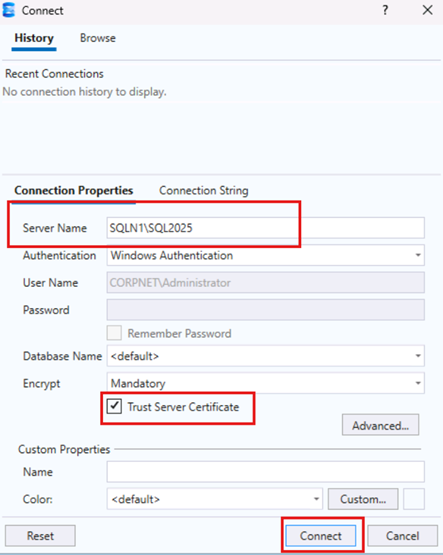
- Once the Connect dialog box opens, type in the Server Name.
- In the case of my instance, the name of the server is SQLN1 and the instance name is SQL2025. So, in the Server Name, I will use SQLN1\SQL2025.
- The default Encrypt method is Mandatory, we need to select the Trust Server Certificate check box.
- Now click on Connect.
Download and Restore the AdventureWorks2025 database.
Now we need a database to practice with. The most common, publicly available database is AdventureWorks. However, you could use this process to restore most other databases if you needed. You can download AdventureWorks Sample Databases. We will use the AdventureWorks2025.bak file for this demonstration.
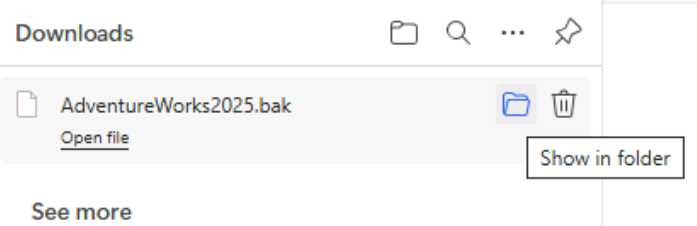
- Once you have downloaded the AdventureWorks2025.bak file, we need to move it to a location that will be easily accessible from the Management Studio.
- Click on Show in Folder to open the Downloads folder.
- Right-click on the AdventureWorks2025.bak file and select Copy.
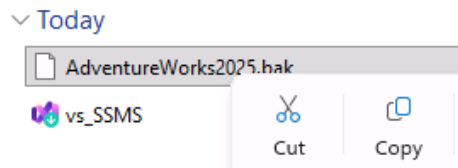
- Navigate to your C: drive, right-click and select Paste. (It is better to copy to a folder that is not on your C: drive). Close File Explorer.
- In SQL Server Management Studio, right click on Databases, and select Restore Databases…
- In the Restore Database dialog box, select Device, and then select the ellipses button.
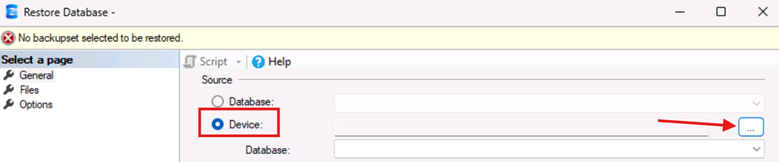
- In the Select backup device dialog box, and then select the Add button.
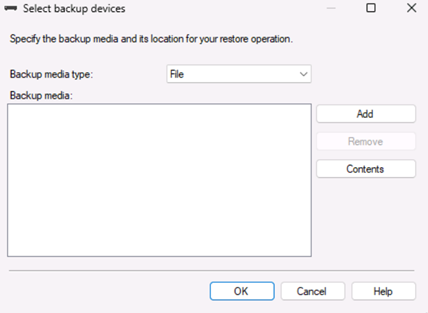
- In the Locate Backup File, navigate to where you saved your AdventureWorks2025.bak file and then click OK.
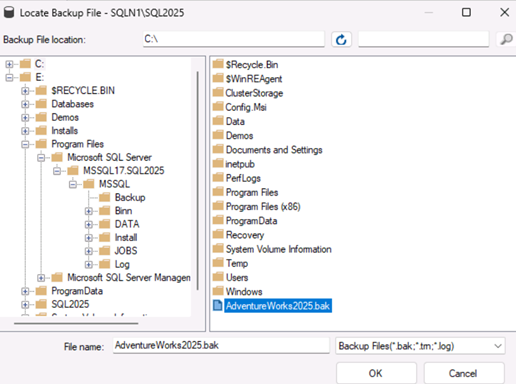
- Click OK again to close the Select backup devices dialog box.
- Click OK again to start the restore process.
- When the database restore is completed, click OK one last time.
Verify successful installation of the AdventureWorks2025 database.
We will write a simple query to verify that SQL Server 2025, SSMS 22, and AdventureWorks2025 have been successfully set up for a practice or test environment.
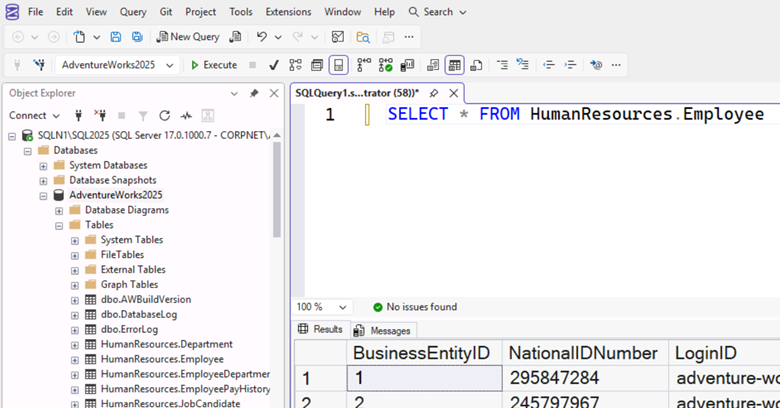
- In Object Explorer, verify that the AdventureWorks2025 database exists.
- Click on the + sign next to AdventureWorks2025 database.
- Click on the + sign next to Tables to see the list of tables.
- Click on the New Query button in the toolbar.
- In the Query Editor window, type SELECT * FROM HumanResources.Employee
- Click on Execute to run the query.
- Verify the results pane to see results.
Conclusion
Setting up SQL Server 2025, SSMS 22, and the AdventureWorks2025 sample database is a straightforward process that prepares you with a fully functional environment for testing, learning, and exploring the latest capabilities of Microsoft’s newest data platform.



Be the first to comment on "Create a SQL Server 2025 Practice Environment"