A few years ago, I started a book on Server administration. Due to artistic differences with the publisher, the book project never made it past the second chapter. However, I thought since I put in the work, I might has well share what I did get written. Here is the overview of what did get finished.
Windows Server Administration: A Practical Guide for Accidental and New Admins
Windows Server has been the backbone of business infrastructure since the mid‑1990s. Whether supporting a small office or a large enterprise, it quietly delivers the services organizations rely on every day. Such as authentication, file access, networking, and application hosting.
This guide distills the core ideas from Windows Server Administration into a practical, task‑focused introduction aimed at new administrators and the often‑overlooked “accidental admin”. The person who suddenly finds themselves responsible for a Windows Server environment.
Rather than diving deep into theory, the focus stays on getting things done.
What Is Windows Server (and Why It Matters)
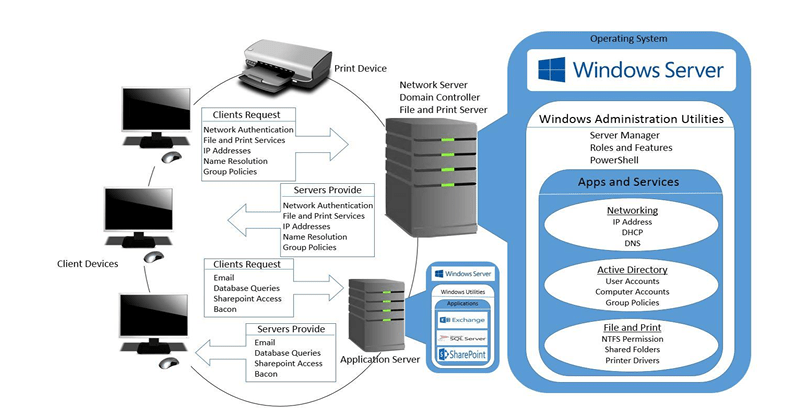
Most daily work happens on client devices. Such as laptops, desktops, and tablets. But those devices don’t work alone. They rely on Windows Server systems running in the background to:
- Authenticate users
- Provide network addresses
- Secure files and printers
- Host business applications
Windows Server acts as the control plane of the network. When something breaks, that’s where administrators step in.
Client vs. Server (Explained Simply)
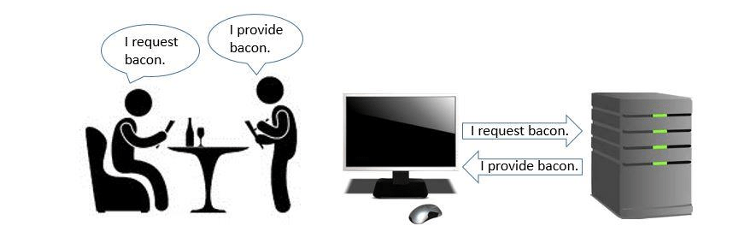
A useful way to understand networking is the client/server relationship:
- A client requests information or services
- A server provides them
Just like ordering lunch at a café. The customer asks and the kitchen delivers. The client machines request services, and Windows Server responds. This pattern underpins everything from logging in to retrieving files to sending emails.
Hardware vs. Software: The Foundation
Think of Windows Server as a translator and traffic controller between the physical machine and the software that runs on it.
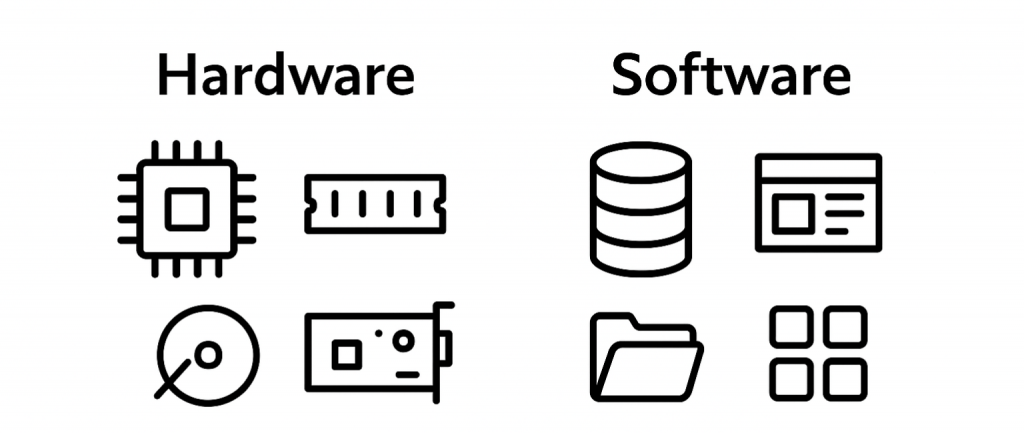
- Hardware is the physical stuff: CPU, memory (RAM), Storage (disks), and network cards.
- Software is what you actually want to run: databases, websites, file shares, apps, and services.
Windows Server sits in the middle and makes sure both sides understand each other.
Client Devices vs. Server Computers
While client devices are optimized for individual productivity, server computers are built for scale:
- More CPU cores
- More memory
- Larger and faster storage
- Redundant networking
Once Windows Server is installed, administrators add roles and features to enable specific services.
The Three Types of Windows Servers
Windows Server systems typically fall into one of three categories:
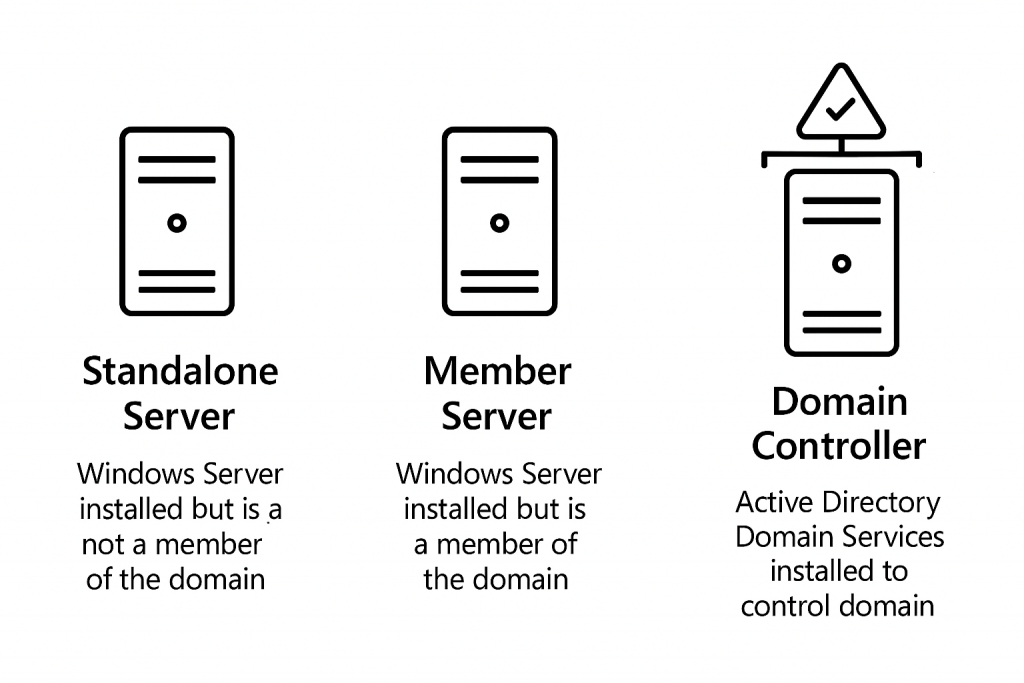
Understanding these roles is essential before making changes in a production environment.
Workgroups vs. Domains
A key architectural decision:
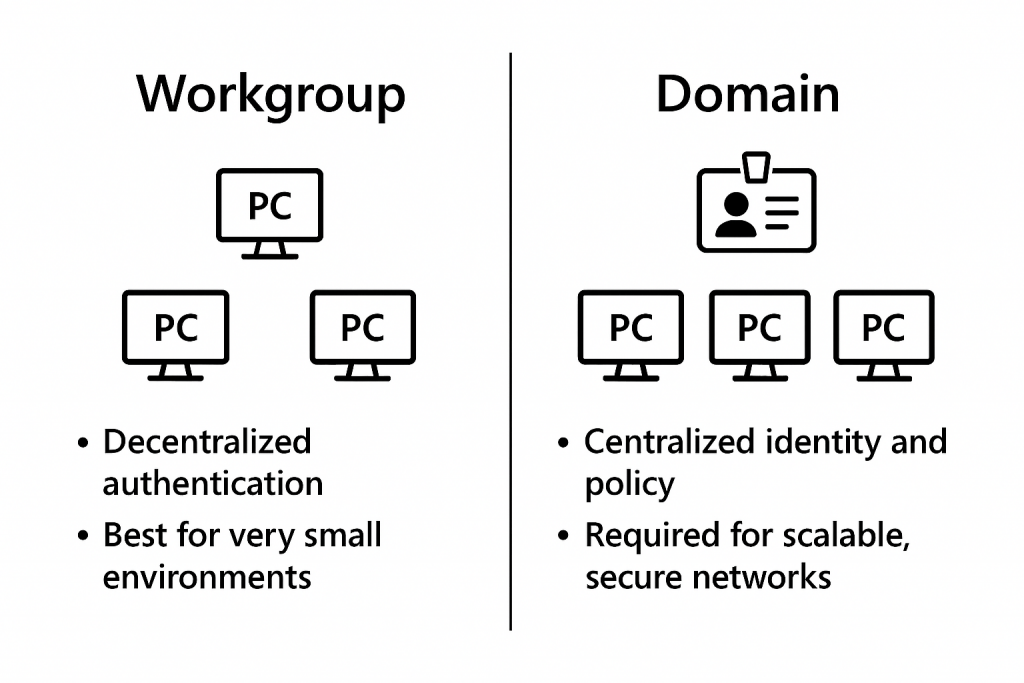
Domains reduce administrative overhead and improve consistency across devices.
Finding System Information Quickly
Admins regularly need to answer questions like:
- How much RAM does this server have?
- What OS version is installed?
- Is this system domain‑joined?
Windows provides built‑in tools, like System Information, to surface this data quickly without guesswork.
Server Administration Tools You’ll Actually Use
Server Manager
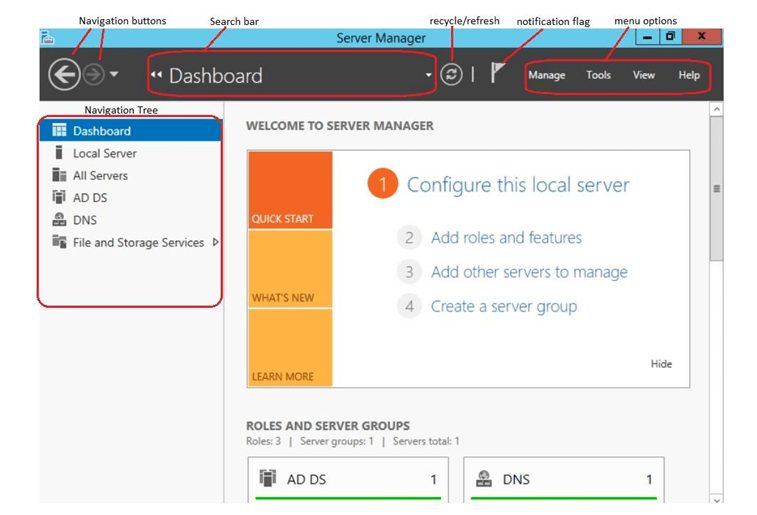
Your primary control panel for:
- Adding roles and features
- Managing multiple servers
- Monitoring health and events
Add Roles and Features Wizard
Guided setup for enabling services like:
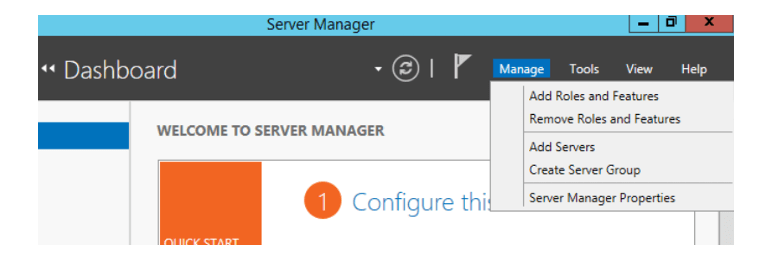
- Active Directory
- DNS
- File Services
Why Server Manager Matters
Server Manager isn’t just a console; it’s a management hub. It lets administrators:
- View server health at a glance
- Group servers by role or function
- Monitor events, services, and performance
- Apply best‑practice guidance using BPA (Best Practices Analyzer)
For new admins, it’s the fastest way to understand what’s running, and what needs attention.
Local Server Configuration Essentials
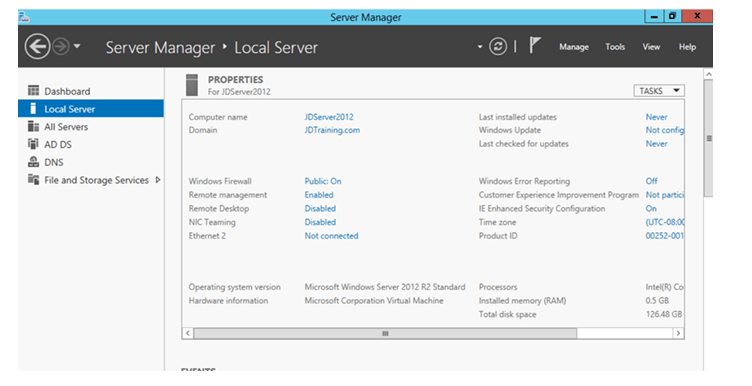
From one screen, administrators can manage:
- Computer name and domain membership
- Firewall status
- Remote management and RDP
- Network configuration
- Windows Update status
- Time zone and system identity
These settings form the baseline for every Windows Server deployment.
Final Thoughts
Windows Server administration doesn’t require mastering every feature on day one. What matters most is understanding:
- How clients and servers interact
- Where core services live
- Which tools to use for daily tasks
This practical, task‑driven approach helps new administrators build confidence quickly, without getting lost in theory.


Be the first to comment on "My Server Administration Book"